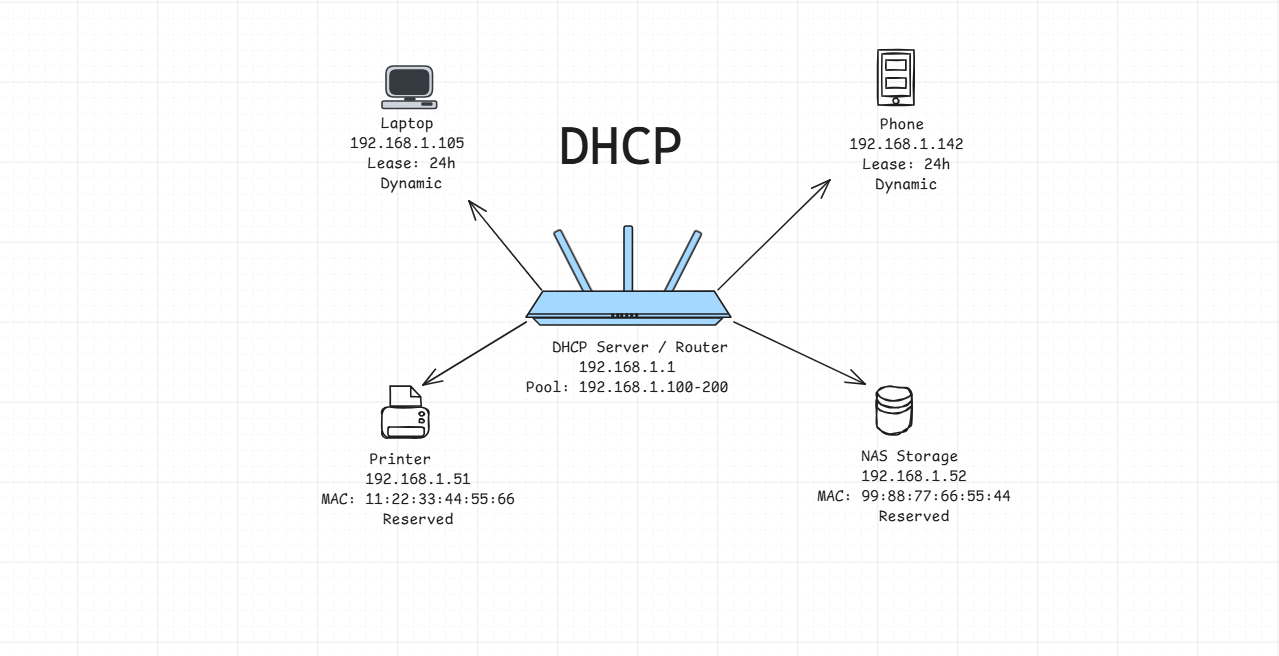
Ever noticed your device’s IP address changing randomly? Yesterday it was 192.168.1.105, today it’s 192.168.1.142. You didn’t change anything, yet the address just… shifted.
It’s DHCP (Dynamic Host Configuration Protocol) doing its job. Without it, someone would have to manually assign every device an IP address, subnet mask, gateway, and DNS servers. Imagine doing that for hundreds of devices every time something connects or disconnects.
Understanding DHCP is essential for:
- Setting up any network (home or enterprise)
- Troubleshooting “no internet connection” issues
- Configuring servers with static IPs vs DHCP
- Understanding IP conflicts and how to prevent them
- Running services like homeservers that need predictable addresses
By the end of this, you’ll understand exactly how DHCP works, why it’s designed the way it is, and how to use it effectively.
What Problem Does This Solve?🔗
Imagine you’re managing a library with 1,000 books. Two approaches:
Manual system: Every time someone borrows a book, you write their name and the book title in a ledger. When they return it, you cross it out. For every book. Every time. Forever.
Automated system: People scan library cards, computers track everything, you just handle exceptions.
Early networks used “manual DHCP” - administrators physically configured every device:
- Walk to each computer
- Open network settings
- Type in: IP address, subnet mask, default gateway, DNS servers
- Hope you didn’t make a typo
- Hope you didn’t assign the same IP twice (causing an IP conflict)
- Repeat for every device, every time something changes
This doesn’t scale. It’s error-prone. It’s slow.
DHCP (Dynamic Host Configuration Protocol) automated this entire process. It’s a protocol where a server dynamically assigns IP addresses and network configuration to devices automatically.
Core Concept: The Library Card System🔗
Think of DHCP like a library card system:
- DHCP Server: The librarian who tracks which books are loaned out
- IP Address Pool: The collection of available books (addresses)
- Lease: The temporary loan period (you can’t keep the book forever)
- Reservation: A book permanently reserved for a specific person (like reserved seating)
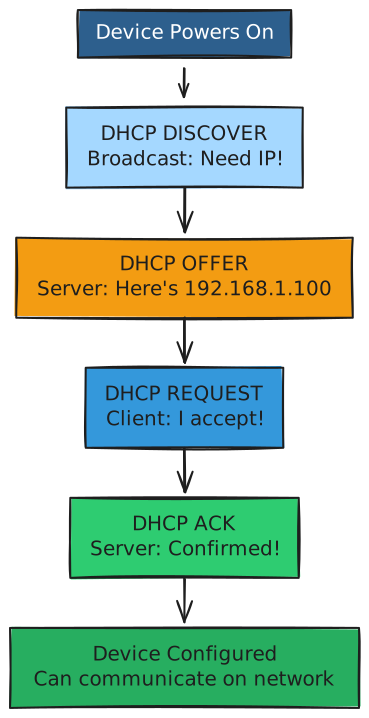
When you connect your laptop to Wi-Fi, this happens automatically:
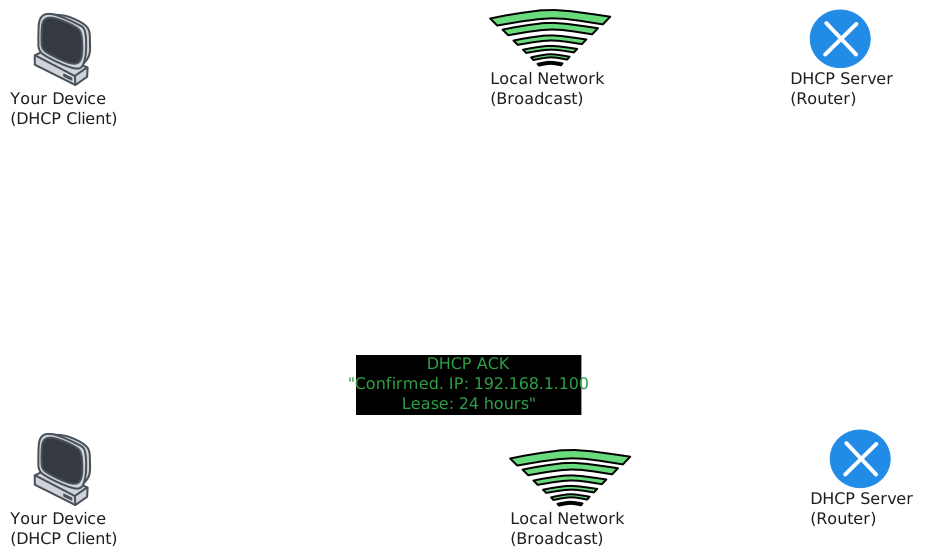
Plain English: Your device asks “anyone got an IP for me?”, the DHCP server responds “here’s one,” your device confirms, and the server says “approved.”
This four-step handshake is called DORA (Discover, Offer, Request, Acknowledge).
The DORA Process: How DHCP Actually Works🔗
Let’s break down each step in detail:
Step 1: DHCP DISCOVER (Client Broadcasts)🔗
When your device boots up or connects to a network, it has no IP address yet. So how does it communicate?
Source IP:      0.0.0.0 (I don't have an IP yet)
Destination IP: 255.255.255.255 (broadcast to everyone)
Source MAC:     [Your device's MAC address]
Message:        "I need an IP address. Any DHCP servers listening?"
This broadcast reaches all devices on the local network. Only DHCP servers respond.
Step 2: DHCP OFFER (Server Responds)🔗
The DHCP server checks:
- Is there an available IP in the pool?
- Does this MAC address have a reservation?
- Has this MAC requested before? (Can I re-offer the same IP?)
Then it responds:
Source IP:      192.168.1.1 (DHCP server)
Destination IP: 192.168.1.100 (offered IP, sent to client's MAC)
Message:        "I'm offering you:
                - IP: 192.168.1.100
                - Subnet Mask: 255.255.255.0
                - Default Gateway: 192.168.1.1
                - DNS Servers: 8.8.8.8, 8.8.4.4
                - Lease time: 86400 seconds (24 hours)"
Note: Multiple DHCP servers might respond with different offers. The client usually picks the first one.
Step 3: DHCP REQUEST (Client Accepts)🔗
The client picks an offer (usually the first one received) and broadcasts its acceptance:
Source IP:      0.0.0.0 (still no IP officially)
Destination IP: 255.255.255.255 (broadcast)
Message:        "I accept the offer from server 192.168.1.1
                 for IP 192.168.1.100"
Why broadcast again? So other DHCP servers know their offers were rejected and can reclaim those IPs.
Step 4: DHCP ACK (Server Confirms)🔗
The DHCP server officially assigns the IP and records the lease:
Source IP:      192.168.1.1
Destination IP: 192.168.1.100
Message:        "Confirmed. IP 192.168.1.100 is yours
                 for 24 hours. Configuration attached."
Now your device configures its network interface with all the provided settings and starts communicating normally.
DHCP Leases: Temporary Ownership🔗
A lease is the time period you’re allowed to use an IP address. Think of it like checking out a library book - you can use it, but the librarian (DHCP server) needs it back eventually so someone else can use it if needed.
Why Leases Expire🔗
Imagine a coffee shop with 50 IP addresses. On Monday, 200 customers visit throughout the day. If IPs were permanent, by noon you’d run out of addresses even though people leave.
Leases solve this: When your lease expires and you haven’t renewed, that IP goes back to the pool for someone else.
Typical Lease Times🔗
- Home networks: 24 hours (86,400 seconds)
- Corporate networks: 8 hours (28,800 seconds)
- Guest networks: 1 hour (3,600 seconds)
- Coffee shops: 30 minutes (1,800 seconds)
Lease Renewal Process🔗
You don’t wait until the lease fully expires. At 50% of lease time, your device tries to renew:
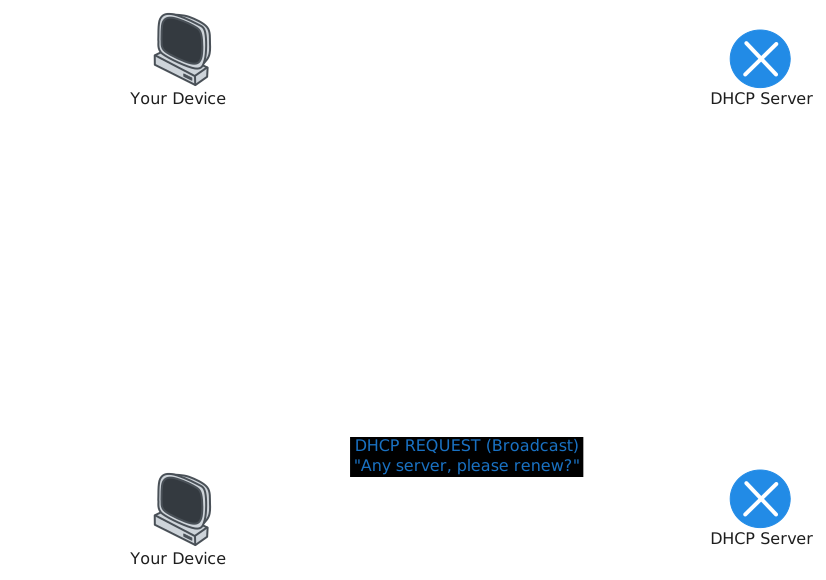
If renewal fails completely, the device releases the IP and starts DORA from scratch.
DHCP Reservations: Permanent Assignments🔗
Sometimes you want a device to always get the same IP. That’s a reservation (also called a “static DHCP lease”).
Why Use Reservations?🔗
Perfect for:
- Servers: Homeservers, NAS devices, printers
- IoT devices: Smart home hubs, cameras
- Network equipment: Access points, switches
How Reservations Work🔗
You configure the DHCP server with a MAC-to-IP mapping:
MAC Address:    AA:BB:CC:DD:EE:FF
Reserved IP:    192.168.1.50
When that device requests an IP:

Key difference from static IP:
- Static IP: Manually configured on the device (no DHCP involved)
- Reservation: Managed by DHCP server, device still uses DHCP
Why reservations are better: Centralized management. Change the IP once on the server, not on every device.
DHCP Scope: The IP Address Pool🔗
A scope (or pool) is the range of IP addresses the DHCP server can assign.
Example configuration:
Network:           192.168.1.0/24
Scope Start:       192.168.1.100
Scope End:         192.168.1.200
Total Pool:        101 addresses
Exclusions:        192.168.1.1 (router), 192.168.1.10 (server)
Reservations:      192.168.1.50 (printer)
Available:         ~98 addresses for dynamic assignment
Exclusions vs Reservations🔗
- Exclusions: IPs removed from the pool (usually for static devices)
- Reservations: IPs within the pool, but tied to specific MACs

What DHCP Configures (Beyond Just IP)🔗
DHCP doesn’t just hand out IP addresses. It provides complete network configuration:
Core Configuration🔗
- IP Address: The device’s identity on the network
- Subnet Mask: Defines network boundaries
- Default Gateway: Router address for internet access
- DNS Servers: For domain name resolution
Optional Configuration (DHCP Options)🔗
DHCP can also provide:
- Domain Name:
example.local - Time Servers (NTP): For clock synchronization
- TFTP Server: For network booting (PXE)
- Lease Time: How long the configuration is valid
- WINS Servers: For NetBIOS name resolution (legacy Windows)
Example full DHCP response:
IP Address:         192.168.1.100
Subnet Mask:        255.255.255.0 (/24)
Default Gateway:    192.168.1.1
DNS Servers:        8.8.8.8, 8.8.4.4
Domain Name:        home.local
Lease Time:         86400 seconds (24 hours)
DHCP Server:        192.168.1.1
DHCP Relay: Serving Multiple Networks🔗
DHCP broadcasts don’t cross routers. So how do you serve multiple networks with one DHCP server?
DHCP Relay Agents (also called BOOTP relay or IP helpers).
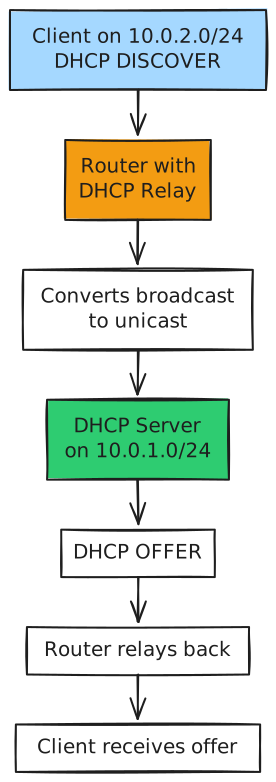
The router forwards DHCP broadcasts as unicast packets to the DHCP server, which responds appropriately for each network segment.
Common DHCP Issues and How to Fix Them🔗
IP Address Conflict🔗
Symptom: “Another device is using your IP address”
Cause: Two devices have the same IP
Common reasons:
- Device has static IP inside DHCP pool
- DHCP server database corruption
- Two DHCP servers on same network
Fix:
# Release current IP
# Linux:
sudo dhclient -r

# Windows:
ipconfig /release

# Request new IP
# Linux:
sudo dhclient

# Windows:
ipconfig /renew
No DHCP Response (APIPA Address)🔗
Symptom: Device gets 169.254.x.x address (APIPA - Automatic Private IP Addressing)
Cause: No DHCP server responded
Reasons:
- DHCP server is down
- Network cable unplugged
- Wrong VLAN
- Router/firewall blocking DHCP
Fix: Check DHCP server status, network connectivity, and firewall rules.
Exhausted DHCP Pool🔗
Symptom: New devices can’t get IPs
Cause: All addresses in pool are leased
Fix:
- Reduce lease time (forces faster turnover)
- Expand the pool range
- Clear stale leases on server
Rogue DHCP Server🔗
Symptom: Devices getting wrong configuration, intermittent connectivity
Cause: Unauthorized DHCP server on network (could be malicious or accidental)
Detection:
# Linux - discover all DHCP servers
sudo nmap --script broadcast-dhcp-discover

# Look for unexpected responses
DHCP in Different Environments🔗
Home Networks🔗
Your router is usually the DHCP server:
- Small pool (192.168.1.100-254)
- Long leases (24 hours)
- Simple configuration
Enterprise Networks🔗
Dedicated DHCP servers (Windows Server, ISC DHCP, Infoblox):
- Multiple scopes for different VLANs
- Shorter leases (4-8 hours)
- Reservations for servers, printers
- High availability (failover pairs)
- Detailed logging
Docker/Container Networks🔗
Docker manages DHCP internally:
- Each network gets IPAM (IP Address Management)
- Containers get IPs automatically from bridge/overlay networks
- Similar concept, different implementation
Try This Yourself🔗
View Your Current DHCP Configuration🔗
Linux:
# See current IP and DHCP info
ip addr show

# View DHCP lease details
cat /var/lib/dhcp/dhclient.leases
macOS:
ipconfig getpacket en0
Windows:
ipconfig /all
Look for:
- DHCP Enabled: Yes
- DHCP Server: [IP address]
- Lease Obtained: [timestamp]
- Lease Expires: [timestamp]
Manual DHCP Release and Renew🔗
Linux:
sudo dhclient -r eth0    # Release
sudo dhclient eth0       # Renew
Windows:
ipconfig /release
ipconfig /renew
What you’ll see: New IP assigned (might be the same or different, depending on availability).
Check DHCP Server Logs🔗
If you control the DHCP server (like your home router):
- Log into router admin panel (Default Gateway)
- Find DHCP settings
- Look at lease table - see all assigned IPs and MACs
- Check logs for DHCP transactions
Standards and References🔗
DHCP is defined in several RFCs:
- RFC 2131: Core DHCP specification (how the protocol works)
- RFC 2132: DHCP options (what configuration can be provided)
- RFC 3046: DHCP relay agent information (for multi-network setups)
These RFCs explain the design decisions: why broadcasts are used, why the four-step process exists, and how to handle edge cases.
Key Takeaways🔗
- DHCP automates IP assignment - eliminates manual configuration and human error
- DORA process: Discover → Offer → Request → Acknowledge (four-step handshake)
- Leases are temporary: Addresses are “rented,” not owned permanently
- Renewal at 50%: Devices proactively renew before expiration
- Reservations vs static: Reservations use DHCP but guarantee specific IPs based on MAC addresses
- More than just IPs: DHCP provides gateway, DNS, subnet mask, and other configuration
- Scope = pool: The range of addresses available for assignment
- Broadcasts stay local: DHCP can’t cross routers without relay agents
- Troubleshooting basics: Release/renew fixes most issues; check for conflicts and pool exhaustion
The mental model: Think of DHCP as an automated librarian. When you enter the library (connect to network), you request a book (IP address). The librarian checks availability, lends you a book with a due date (lease), and tracks who has what. When the due date approaches, you can renew. When you leave (disconnect), the book goes back on the shelf (IP returned to pool). Reservations are like having a book permanently on hold with your name on it - still library-managed, but always yours when you need it.
DHCP is one of those protocols you take for granted until it breaks. Master it, and you’ll never struggle with network connectivity issues again.